
Live Photo Maker - Live Camera
BitDance AI Studio - Fun, Creative & Smart ToolsPhotography
4.622.00 Reviews
- Version
- 1.5.5
- Installs
- 500.00K
- Age Rating
- Everyone
Screenshots
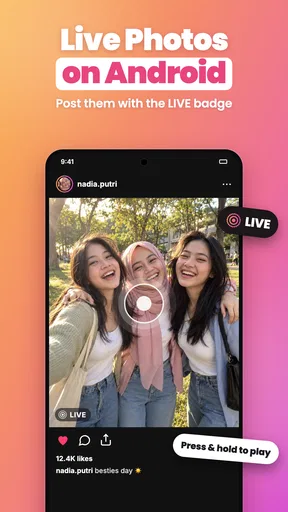
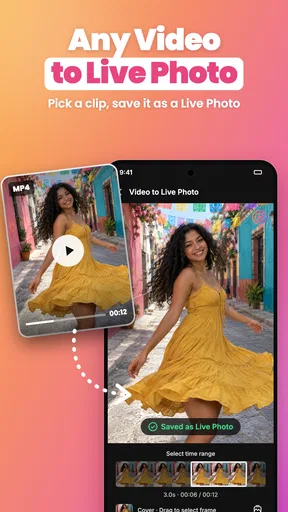
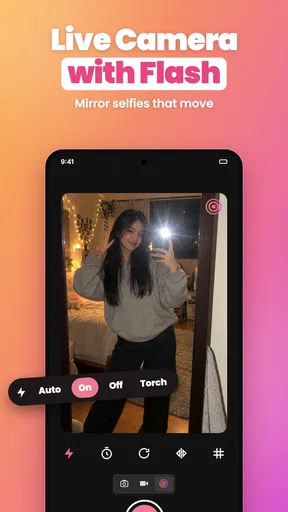
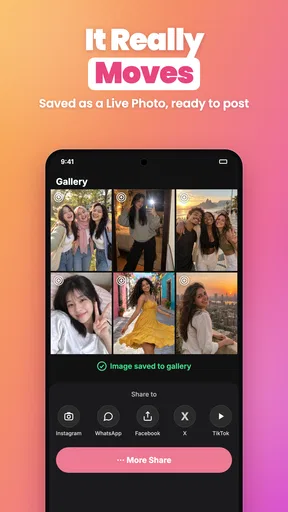
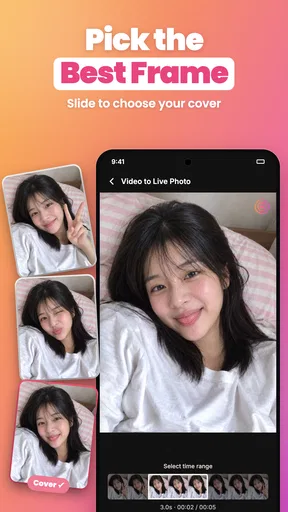
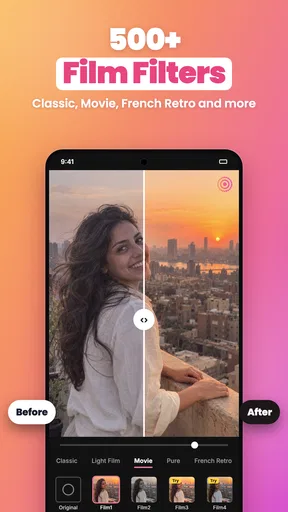
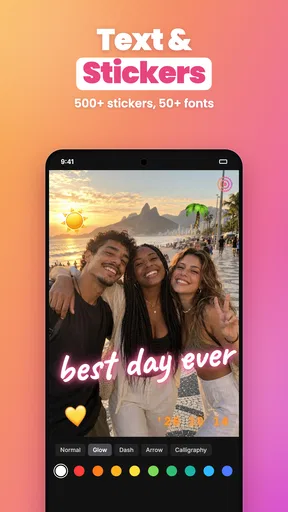
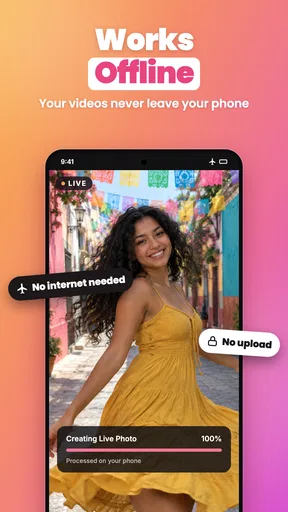
Our Review of Live Photo Maker - Live Camera
 Analysis by Appyee
I spent time with Live Photo Maker - Live Camera as a photography app for turning ordinary video clips into Live Photos and motion-style images on Android. The basic idea is easy to understand, but the real value depends on how carefully you choose the source clip and how consistently you prepare each export. It is free to start, rated for Everyone, and developed by BitDance AI Studio - Fun, Creative & Smart Tools.
What I like most is that it addresses a very specific Android problem: many phones can record short moving moments, yet they do not always offer the same Live Photo workflow people may know from other platforms. Instead of asking me to learn a full video editor, this app focuses on the conversion itself. That makes it approachable for casual users, while still leaving room for a more disciplined workflow if I want cleaner results.
From a short clip to a usable motion photo
My recommended starting point is simple: record or select a brief video with one clear subject, then open it in the app and work through the conversion rather than immediately exporting the first result. A clip of a child blowing out candles, a pet looking toward the camera, or leaves moving in a breeze works better than a long recording with several changes of direction. The app is most convincing when the motion has a beginning, a small visual peak, and a natural ending.
This is also where the app differs from a normal video editor. I am not using it to build a timeline, add a soundtrack, or create a polished social video. I am trying to preserve a tiny moment that feels still at first and then comes alive. That means the selection of the source matters more than decorative editing. A shaky clip can remain distracting after conversion, and a subject that moves out of frame too quickly will not suddenly become a good Live Photo.
For an everyday example, imagine taking a video of a friend holding a birthday cake. I would avoid the entire party recording and choose the few seconds around the smile, candle movement, or small gesture. I would preview that section, check whether the main subject stays visible, and export only after the motion feels intentional. This habit saves storage and makes the finished result easier to share or revisit.
The app supports an offline workflow, which is useful when I am traveling, working without a reliable connection, or handling personal clips that I do not want to send through an online conversion service. Offline use does not remove the need for free storage or a capable phone, but it does make the process feel more direct. I can select a clip, create the motion result, and continue without treating the task like a cloud project.
One practical question is whether the app is suitable for existing videos or only for footage captured inside the app. In my experience, its central purpose is video-to-Live-Photo conversion, so the useful workflow begins with a video already on the device or a clip created with the phone camera. That makes it flexible for old family recordings, recent camera clips, and small moments saved from other apps, provided the source can be selected normally by the device.
The first preview should be treated as a quality check, not just a confirmation screen. I look for abrupt starts, an awkward final frame, accidental camera movement, and a subject that becomes partially hidden. Those problems are easier to notice when the motion loops or plays back repeatedly. If the result feels uncomfortable to watch twice, I go back to the source and choose a tighter moment instead of assuming another export will fix everything.
Settings that deserve attention before exporting
The most important settings are the ones that affect how much of the original clip becomes the final moving image. Even when the interface is straightforward, I recommend checking the selected duration, the starting point, and the ending point before saving. A shorter, purposeful segment usually feels more like a Live Photo than a complete video reduced without thought.
There is a useful trade-off between context and smoothness. Keeping more of the clip can preserve the story around an event, but it may also include camera repositioning or unrelated movement. Cutting too aggressively can make the action feel abrupt. I usually keep enough lead-in to establish the scene, then let the main action happen, and finish before the camera operator begins lowering the phone.
Resolution and output quality also deserve a quick look whenever the app exposes those choices. Higher quality is preferable for a memorable family moment, but a lighter result may be more practical when I plan to create several versions or keep them on a device with limited space. I would not automatically choose the largest option for every clip; the right choice depends on whether the image will be viewed privately, shared, or kept as a personal archive.
The best result comes from matching the export choice to the clip, not from choosing the most demanding setting every time. A close-up of a moving face benefits from detail, while a dark, noisy recording may not look dramatically better simply because it is saved at a larger size. The app can convert the material it receives, but it cannot restore detail that the phone camera never captured.
It is worth checking the app’s current version before judging an older workflow. The version I reviewed is 1.5.5, and the app runs on Android 7.0 or later. That broad compatibility is helpful for people using older phones, although the experience can still vary with the device’s processor, available storage, and camera footage. Older hardware may take longer to process a clip, especially when several exports are queued one after another.
Another question I would ask before installing is whether the app is genuinely free. It is listed as free, but it also includes in-app purchases ranging from $0.99 to $12.99 per item. I would therefore begin with the basic workflow and only consider a purchase if a specific extra is useful to me. The free entry point makes experimentation easy, but the presence of optional purchases means I would still pay attention to any screen shown before finalizing an export.
Repeatable habits make the app much faster
Once I found a workflow that produced reliable results, I stopped treating every conversion as a separate experiment. I first reviewed the clip in the phone gallery, rejected recordings with obvious shake, and opened only the strongest candidates. That small change reduced wasted processing and made it easier to compare the final motion images later.
A second useful habit is recording with the conversion in mind. I hold the phone still for a moment before the main action and keep it steady briefly afterward. This gives the final image a calmer opening and closing instead of starting in the middle of a hand movement. It is a simple shooting technique, but it improves the result more than repeatedly changing app settings after a poor recording.
For moving subjects, I leave extra space around the action rather than framing too tightly. A pet may jump, a child may turn, and a person holding an object may shift sideways. A little breathing room helps the motion remain inside the frame. This is especially useful because a conversion tool does not automatically recompose the scene for me.
I also use a naming and cleanup routine. After exporting a version I like, I keep it with a recognizable name or in a dedicated album, then remove failed attempts. Motion files can be easy to confuse with their original videos, particularly when several takes look similar. Keeping both the source and the successful result is sensible, but retaining every trial quickly makes the gallery harder to manage.
For repeat tasks, I prepare a small batch of likely candidates first instead of switching constantly between the camera, gallery, and converter. I review the clips in one pass, select the best moments, and then process them in a consistent order. This is not a special automation feature; it is simply a better personal routine. It makes the app feel faster because I spend less time making decisions inside each conversion.
Shortcuts also come from deciding what the finished image is for. If I want a personal memory, I prioritize natural movement and keep the original clip nearby. If I want to share the result, I check whether the recipient’s device or app will display the motion format as intended. A motion photo can lose its interactive behavior when passed through a service that treats it as an ordinary still image or video, so I would test the sharing route with an unimportant clip first.
This is one of the app’s less obvious trade-offs. Conversion may be successful on the phone, yet the next app in the chain may not preserve the same experience. For that reason, I would not delete the original video immediately. Keeping it gives me a fallback if a messaging service, social network, or gallery viewer handles the exported format differently than expected.
Where the conversion approach reaches its limits
Live Photo Maker - Live Camera is focused, and that focus is both its strength and its boundary. It is not the right choice if I need advanced color correction, precise audio editing, multi-layer effects, captions, or a full social-video timeline. A conventional video editor is better for those jobs. This app makes sense when the desired outcome is a compact moving photograph, not a finished video production.
It also cannot solve every problem in the source recording. Heavy blur, poor lighting, compression damage, and fast camera pans remain visible. I found that a stable original with one obvious movement produced a more pleasant result than a technically longer clip packed with action. Users expecting artificial stabilization or cinematic reconstruction may find the workflow too limited.
There is another limitation around expectations. A Live Photo-style result is not the same as a fully animated photograph with intelligent subject isolation. The app converts motion from video; it does not turn a completely static picture into a realistic new event. If I only have a still image, I should not expect the app to invent authentic movement comparable to a recorded clip.
The app is also less suitable for professional photographers who need detailed control over color profiles, exact export specifications, or a repeatable production pipeline across many devices. Its appeal is practical and personal. It helps an Android user create a moving-photo-style memory without opening a complex editor, but it is not a replacement for specialist software.
Privacy-conscious users may appreciate the offline angle, while still needing to use normal care with any app that accesses personal media. I would review the Android permission prompts during installation and only select the photos or videos needed for the task when the system offers that choice. Offline processing is convenient, but good media organization and sensible permissions remain part of a careful workflow.
The audience size suggests that the concept is connecting with Android users: the app has passed 500K installs, with an average rating of 4.6 from around 11K ratings. I read that as encouraging evidence of broad usefulness, not a guarantee that every phone or clip will behave identically. Hardware differences matter here because processing speed, gallery integration, and playback support can vary outside the app itself.
Who should use it and who should skip it
I would recommend it to someone who regularly records small personal moments and wants more life than a still frame provides. It is particularly suitable for Android owners who like the feel of Live Photos but do not want to learn a full editing suite. Families, pet owners, travelers, and casual creators can all find a practical use for it when the source clips are short and reasonably steady.
It is also a good fit for someone who wants to work offline. A traveler could record a street musician, a train passing through a landscape, or a brief wave from a family member, then create a motion image later without depending on a connection. The ability to handle the conversion on the device keeps the workflow simple and avoids turning a small memory into a larger editing project.
I would suggest skipping it if the main goal is polished video creation. If I need transitions, voice-over, music timing, subtitles, or detailed retouching, I would choose a dedicated editor instead. I would also look elsewhere if my phone is mainly used for high-end photography and I need exact control over every technical output detail. This app is intentionally more approachable than exhaustive.
For younger users, the Everyone age rating makes the app broadly accessible, but I would still guide children when they are selecting and sharing personal videos. The rating describes general suitability; it does not replace normal supervision around family media, public posting, or accidental sharing.
My verdict after building a consistent workflow
After using it as intended, I see Live Photo Maker - Live Camera as a useful specialist tool rather than an all-purpose camera replacement. Its strongest quality is the short path from a regular video to a motion-photo-style result. The app becomes noticeably better when I do the creative work before opening it: hold the phone steady, choose one clear action, trim with purpose, preview twice, and preserve the original until sharing is confirmed.
The current version, 1.5.5, is a sensible option for Android users on version 7.0 or newer who want to experiment without an upfront price. The optional purchases mean I would explore the free experience first, but the basic concept is easy enough to understand quickly. I would not install it expecting professional editing controls or guaranteed compatibility everywhere the exported file travels.
My final recommendation is positive for the right person. If you want to rescue a favorite short video and turn it into something that feels more alive in your gallery, this app offers a direct route. If you need a complete editing studio, advanced restoration, or a format that every sharing platform handles identically, another tool will serve you better. For simple, repeatable Android motion-photo creation, it earns a place in my photography toolkit.
In everyday use, the winning formula is not complicated: capture calmly, select narrowly, check the output, and keep the source. Following that routine lets the app’s focused design work in its favor. I would recommend Live Photo Maker - Live Camera to friends who want quick motion memories from ordinary videos, while making sure they understand that the quality of the final image begins with the quality and timing of the original clip.
Verdict
Strengths of Live Photo Maker - Live Camera
- Turns still photos into lively animated images with simple controls.
- Includes real-time camera effects for creative shots.
- Quickly saves and shares creations on social media.
- User-friendly interface suitable for beginners.
- Offers multiple animation styles and editing options.
Limitations of Live Photo Maker - Live Camera
- Some features may require in-app purchases or a subscription.
- Export quality can vary depending on the selected format.
- Ads may interrupt editing or browsing.
- Advanced editing tools are limited compared with professional apps.
- Animated results may use more storage than standard photos.
Similar Picks in This Category
View All
Google Photos
Google LLC4.4

Gallery
Google LLC4.2

Picsart AI Photo Editor, Video
PicsArt, Inc.3.9

B612 AI Photo&Video Editor
SNOW Corporation4.1

BeautyPlus-Selfie Photo Editor
PIXOCIAL TECHNOLOGY (SINGAPORE) PTE. LTD.4.5

Remini - AI Photo Enhancer
Bending Spoons4.1
Frequently Asked Questions
What is Live Photo Maker - Live Camera used for?
Live Photo Maker - Live Camera is designed to create animated photos from moments captured with your phone’s camera. Depending on the available tools, you can record a short moving image, apply effects or filters, and save the result for sharing. It is useful for users who want something more dynamic than a standard photograph without editing an entire video.
Can I use Live Photo Maker - Live Camera on both Android and iPhone?
Availability and features may differ depending on your device, operating system, and the version distributed through the relevant app store. Before downloading, check that your phone meets the listed requirements and that the application supports your camera hardware. Some functions, export options, or interface elements may not be identical on Android and iOS.
Does the app require camera, microphone, or storage permissions?
The application may request access to the camera to capture live images, storage or photos to save and import media, and possibly the microphone if it records sound with the animation. These permissions are normally necessary for the main features, but you can review or change them in your device settings. Avoid granting access that does not match how you plan to use the app.
Are Live Photo Maker - Live Camera’s basic features free?
The app may be available as a free download while offering optional purchases, subscriptions, advertisements, or premium effects. Pricing and included tools can change with updates, so review the current store listing before installing. Pay particular attention to trial terms and renewal conditions if a subscription is offered, especially when testing advanced editing or export features.
Where can I share or save the live photos created with the app?
After creating an animation, you can generally save it to your device or share it through compatible social networks and messaging applications. The exact format may affect how the result appears: some platforms support motion-photo formats directly, while others may require a video or GIF export. Check the preview and export settings before deleting the original recording.
